.png?width=225&height=106&name=mockup%20(32).png)
Table of Contents
Locating Consumer Documents
-
Log in the Ops Portal (ELI)
-
Enter the Proc ID (Internal HFD Patient Identifier) in the search bar or:
-
Select Applications> Manage Applications in the navigation menu
- Search by any field it he Applications Table
- Click the Proc ID
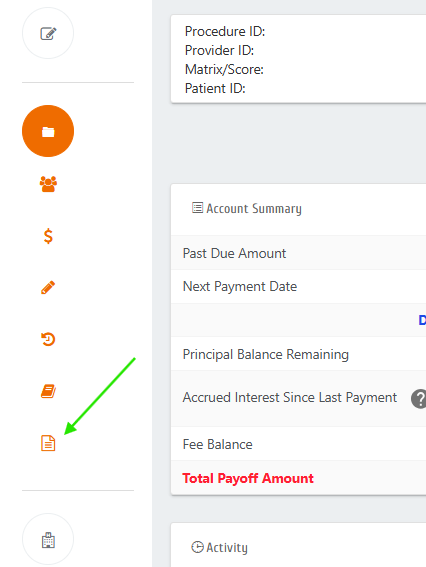
- Select the orange Documents icon on the right side menu
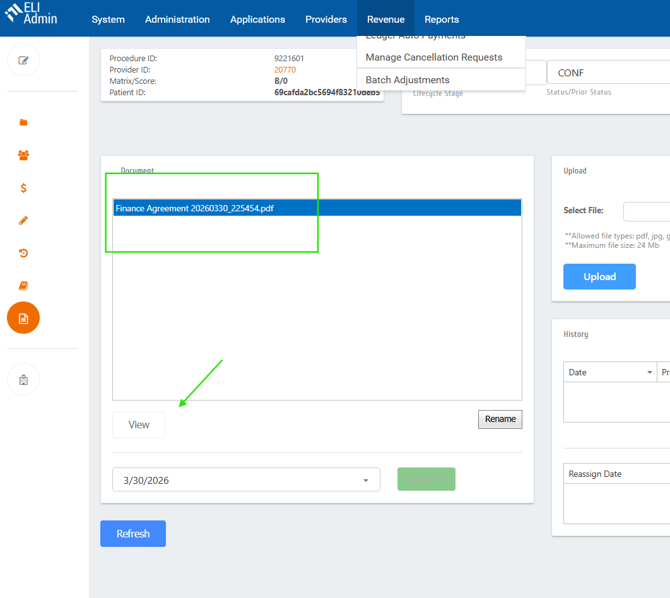
- Locate the document you wish to view and select View. The document will download in your browser.
👉Loan documents are typically titled Finance Agreement. The date and time they were saved is directly to the right of the title and is in Year/Month/Day order
Saving Consumer Documents
-
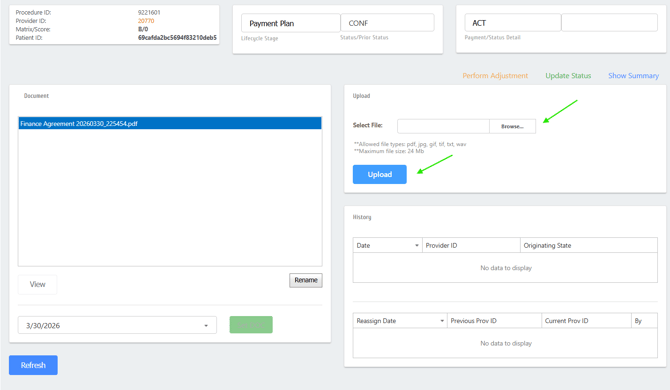
Follow steps 1-6 in the Locating Consumer Documents section
- From the Documents page, click browse in the Upload section
- Find the Document in the you wish to save
- Once selected, click Upload
- Documents will be visible in the Document section with a date and time stamp attached
❗Carefully verify each document before uploading. Documents may be visible to the consumer in the Customer Portal and can be difficult to remove once added.