
This article walks through how HFD validates Social Security Numbers and Personal Identifiable Information (PII) when applicants submit an Easy Apply request in the Provider Portal:
- Their Social Security Number (SSN) appears to be mistyped or does not match other information in the application, or
- Their PII (name, DOB, address, SSN) does not align with validated data sources and requires confirmation.
These prompts are normal, take just a few seconds to complete, and help ensure the applicant’s plan can be approved successfully.
Why SSN and PII Verification Happens
HFD automatically verifies key applicant information as part of the KYC process. Additional verification is triggered when:
- The SSN appears incorrect or incomplete
- The identity data provided does not match known records
- There is recent or updated information tied to the applicant
- There are inconsistencies in the applicant’s profile (name, address, DOB changes, etc.)
When this happens, the system guides the applicant through a simple confirmation flow before continuing.
👉For more about KYC, see: Understanding KYC.
SSN Verification Flow (Easy Apply)
If an SSN is entered incorrectly or does not match, the applicant sees a screen asking them to re-enter and confirm their SSN.
Applicant experience:
- The applicant submits their Easy Apply form.
- The system detects an SSN mismatch from what was entered on step 1.
- The applicant sees a message prompting them to confirm their SSN on step 6.
- They re-enter their SSN to validate it.
- Once validated, the flow continues automatically.
.png?width=250&height=505&name=Untitled%20design%20(24).png)
Important notes for providers:
- This is not a credit check, only identity confirmation.
- Applicants must enter their full and accurate SSN to proceed.
- If they cannot validate their SSN, they may need to double-check for typos or ensure the SSN belongs to the individual applying.
PII (Identity) Verification Flow
If an applicant’s identity information does not match what is on file, they will be asked to complete a quick PII confirmation step involving capturing their government-issued ID and taking a live selfie photo.
‼️These are the most common ID types accepted: Driver's License or other government-issued photo ID, Passport, Residence Permit, Visa, or Driver's License Permit.
U.S. Military IDs cannot be used.
Applicant experience:
- After submitting Easy Apply, the system detects a mismatch in name, date of birth, address, or SSN.
- The applicant sees an identity verification screen.
- They capture clear images of the front and back of their government-issued ID.
- The applicant take a live selfie so the system can securely match their photo to the ID.
- Once validated, the application moves forward by agreeing to the terms and conditions.
- They then click Complete & Pay to finalize and activate their payment plan.
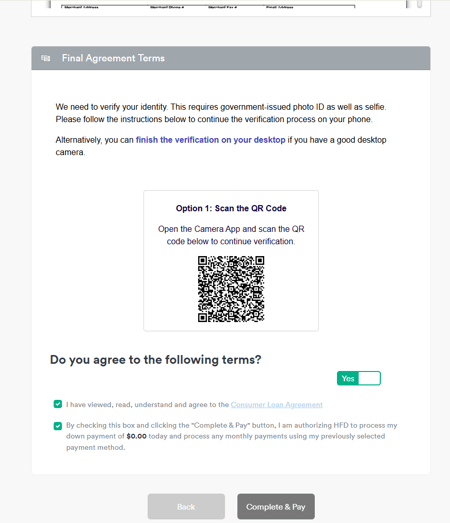
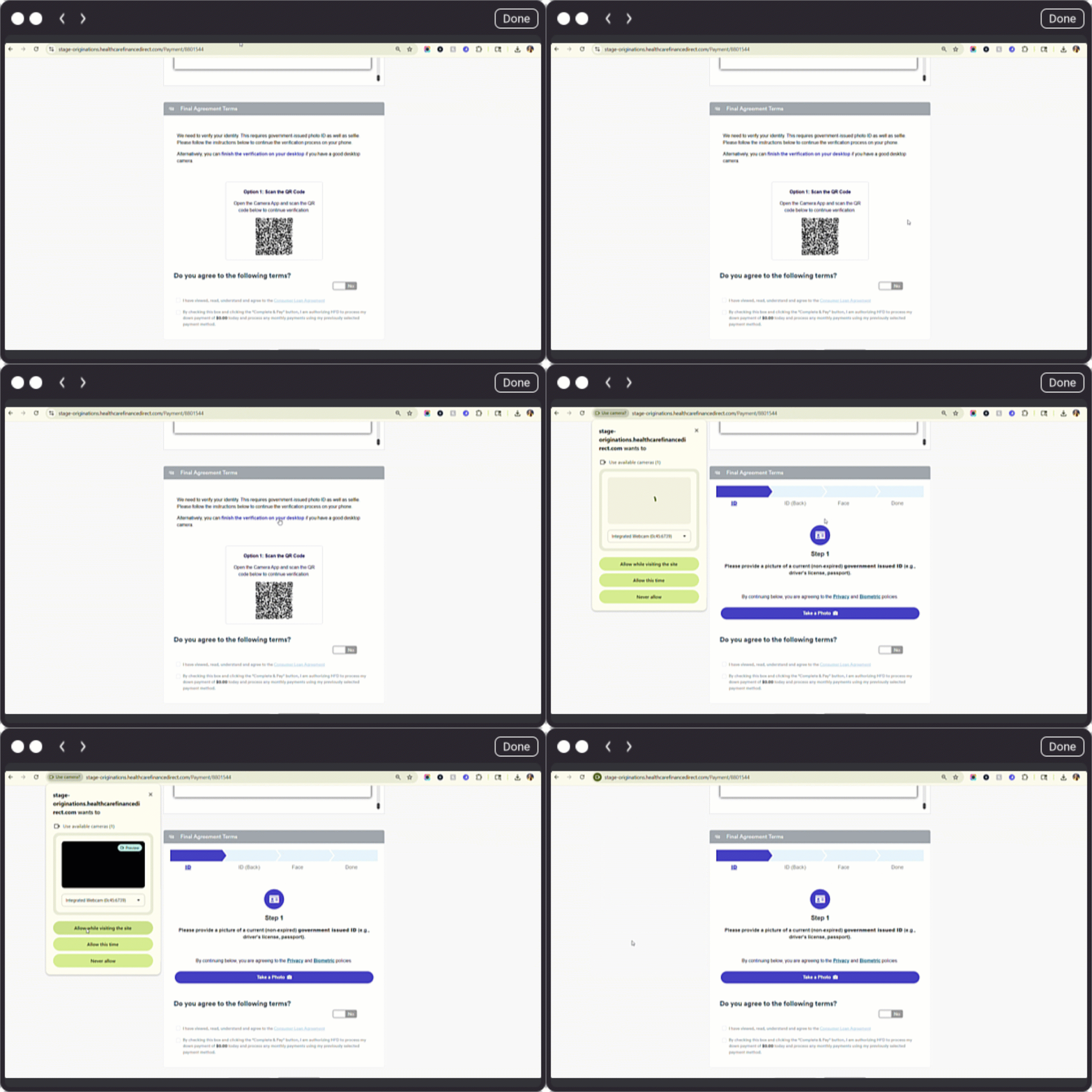
For applicants completing the application on an in-office device or personal desktop, a QR code will display so they can securely complete the PII steps on their personal device, or they may click the on-screen link to complete verification on a desktop.
Scan QR Code to complete PII on a personal device:
Click desktop link to complete PII on a desktop:
Common reasons PII verification appears:
-
Applicant recently moved
-
Name changes (marriage, hyphenation, etc.)
-
Typos in the application
-
Multiple records tied to the same SSN
-
Recent updates in public data sources
What providers should do:
If a patient reports this screen or is unsure why it appeared, simply reassure them that:
-
It is a normal security step
-
It takes only a few seconds
-
It does not affect their credit
-
It protects them from identity-related errors on financing documents
What Happens After Verification
Once the applicant successfully validates their SSN and/or PII:
‼️Provider should check application status in the Provider Portal. Do not proceed with treatment on applications that are not in an Activated status.
- Their information is rechecked instantly
- The Easy Apply application resumes
- The applicant continues through approval and plan selection as normal
- If declined: A declination message will appear indicating we were unable to verify their identity with the information provided
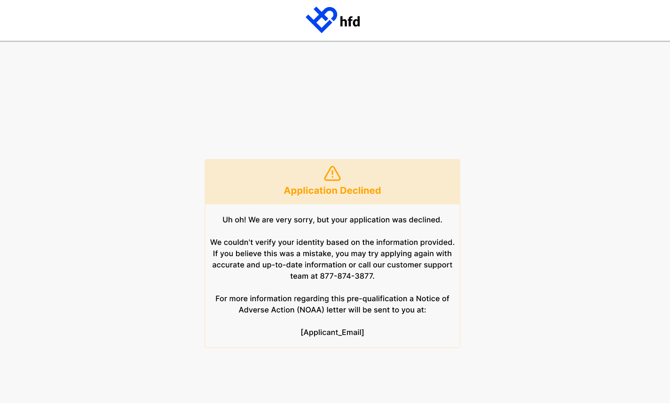
If the applicant cannot complete the verification after several attempts, they may contact HFD support for assistance.
Provider Tips
- Encourage applicants to enter legal name and address exactly as it appears on official documents.
- Remind applicants to double-check SSNs before submitting.
- If a patient gets stuck, you can direct them to retry or to contact HFD support.
👉Check out our KYC FAQ's here